> ## Documentation Index
> Fetch the complete documentation index at: https://operator.inference.net/llms.txt
> Use this file to discover all available pages before exploring further.
# Utilizing Idle RunPod Nodes
> You can run an Inference worker when your RunPod nodes are unrented, providing you a source of additive revenue for your fleet completely hands free.
If you're a compute provider on RunPod, you probably have a certain amount of your GPU fleet
going unused when those nodes are unrented on RunPod.
You can generate revenue passively by running an Inference worker during those unrented hours.
Better yet, you can have this fallback workload run *automatically* using the built-in RunPod "Default Job" feature.
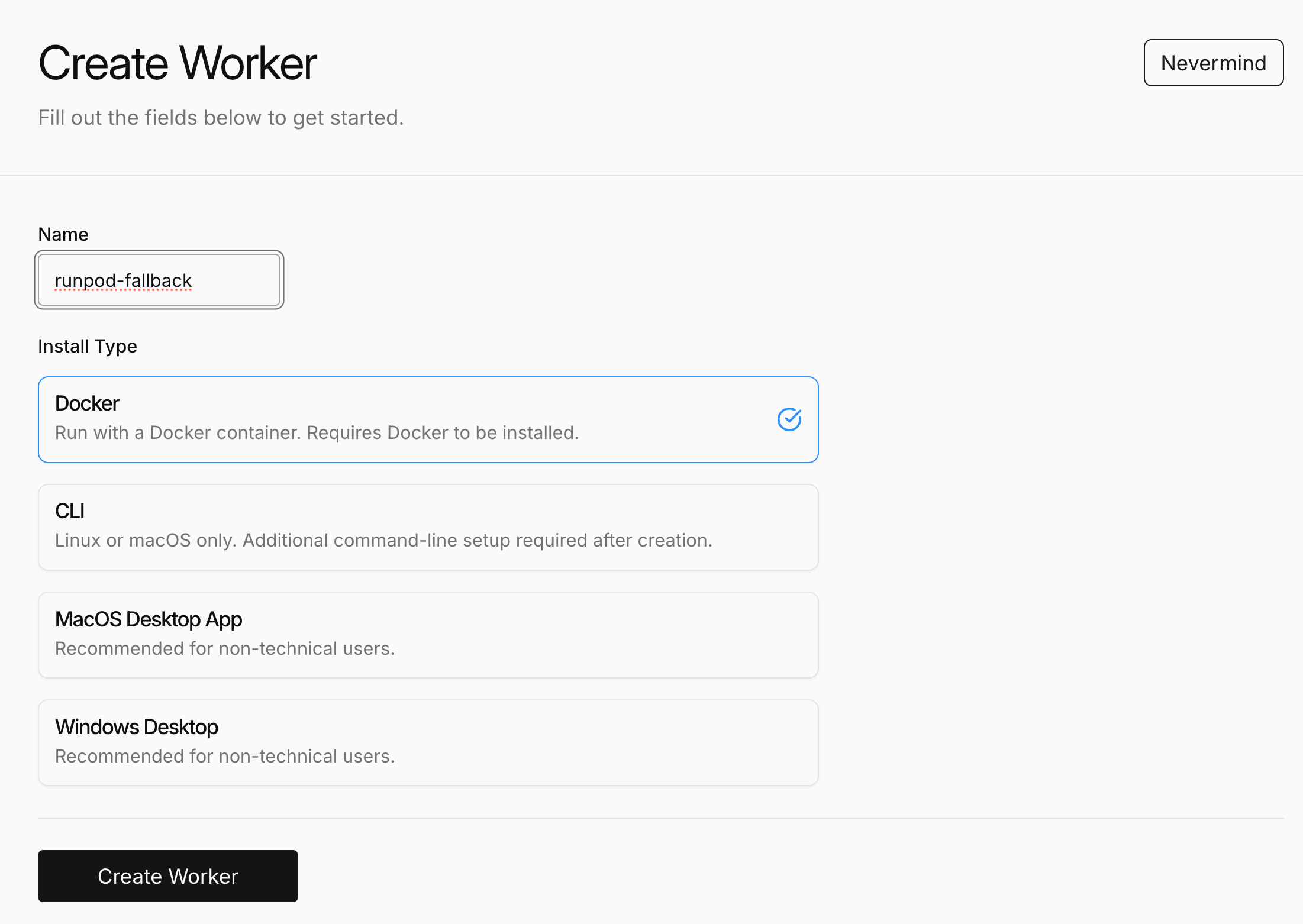
## Step 1. Creating a worker on inference.net
Create your worker on the inference.net dashboard [by clicking here](https://inference.net/dashboard/workers/create).
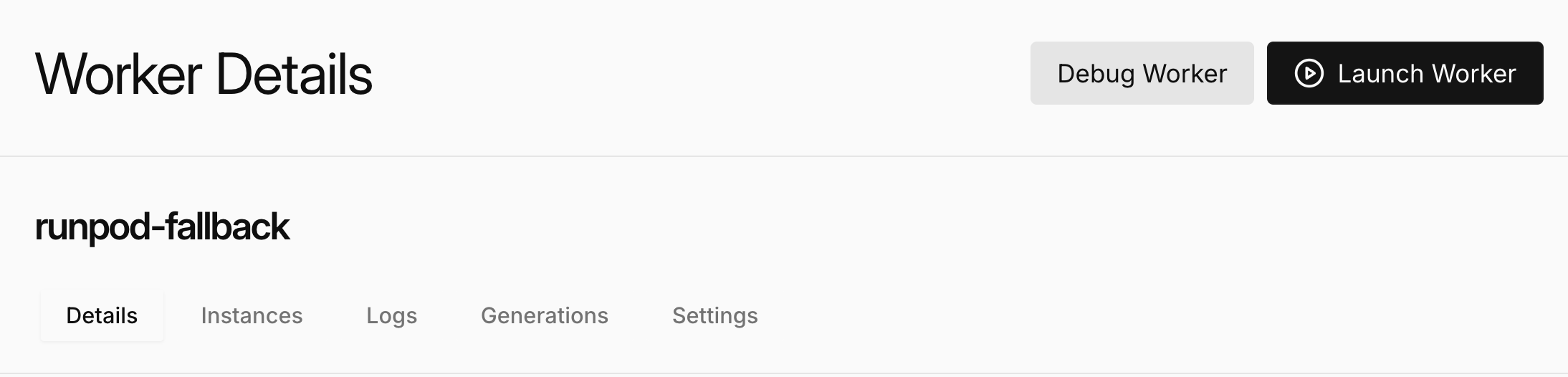
 You can then copy your worker registration code by clicking the **Launch Worker** button.
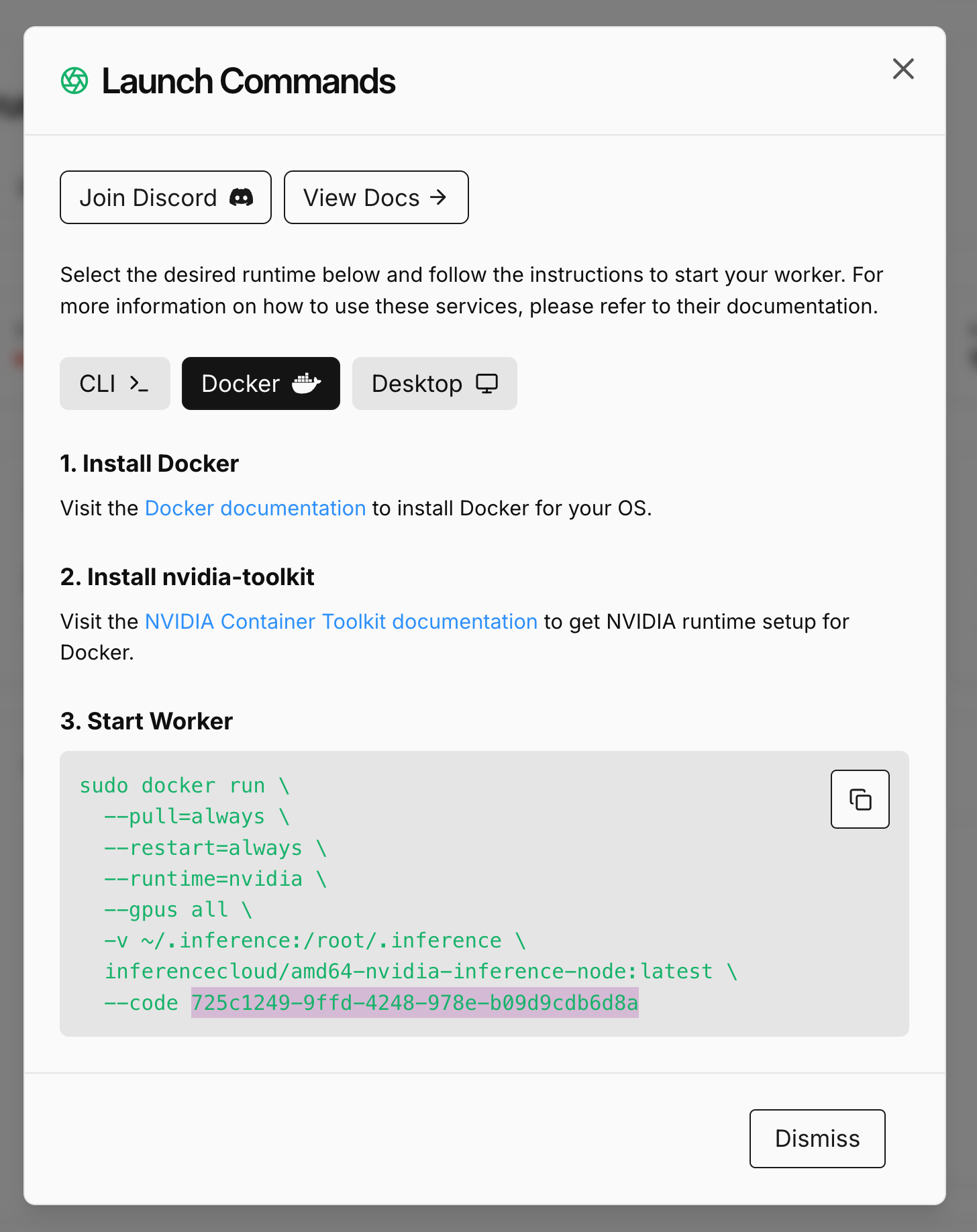
 Finally you can copy your registration code from the modal.
 ## Step 2. Creating the Worker Template
In RunPod, navigate to the "My Templates" page [by clicking here](https://console.runpod.io/user/templates).
You'll want to create a template with the following configuration:
Here is a markdown table representing the configuration shown in your image:
| Setting | Value |
| ----------------------- | ---------------------------------------------------------------------------------------------------- |
| Name | inference-net-fallback-worker (or any name you prefer) |
| Public Template | (unchecked) |
| Compute Type | Nvidia GPU (if you need AMD support, contact the Inference.net team |
| Container Image | `inferencecloud/amd64-nvidia-inference-node:latest` |
| Container Start Command | `--code YOUR_WORKER_REGISTRATION_CODE` |
| Container Disk | 100 GB (if the machines you host on Runpod have larger drives, you should increase this up to 500gb) |
| Volume Disk | 100 GB (if the machines you host on Runpod have larger drives, you should increase this up to 500gb) |
| Volume Mount Path | `/workspace` |
| HTTP ports (max 10) | (empty) |
| TCP ports (max 10) | (empty) |
| Environment Variables | `CONFIG_DIR=/workspace` `HOME=/workspace` |
## Step 2. Creating the Worker Template
In RunPod, navigate to the "My Templates" page [by clicking here](https://console.runpod.io/user/templates).
You'll want to create a template with the following configuration:
Here is a markdown table representing the configuration shown in your image:
| Setting | Value |
| ----------------------- | ---------------------------------------------------------------------------------------------------- |
| Name | inference-net-fallback-worker (or any name you prefer) |
| Public Template | (unchecked) |
| Compute Type | Nvidia GPU (if you need AMD support, contact the Inference.net team |
| Container Image | `inferencecloud/amd64-nvidia-inference-node:latest` |
| Container Start Command | `--code YOUR_WORKER_REGISTRATION_CODE` |
| Container Disk | 100 GB (if the machines you host on Runpod have larger drives, you should increase this up to 500gb) |
| Volume Disk | 100 GB (if the machines you host on Runpod have larger drives, you should increase this up to 500gb) |
| Volume Mount Path | `/workspace` |
| HTTP ports (max 10) | (empty) |
| TCP ports (max 10) | (empty) |
| Environment Variables | `CONFIG_DIR=/workspace` `HOME=/workspace` |
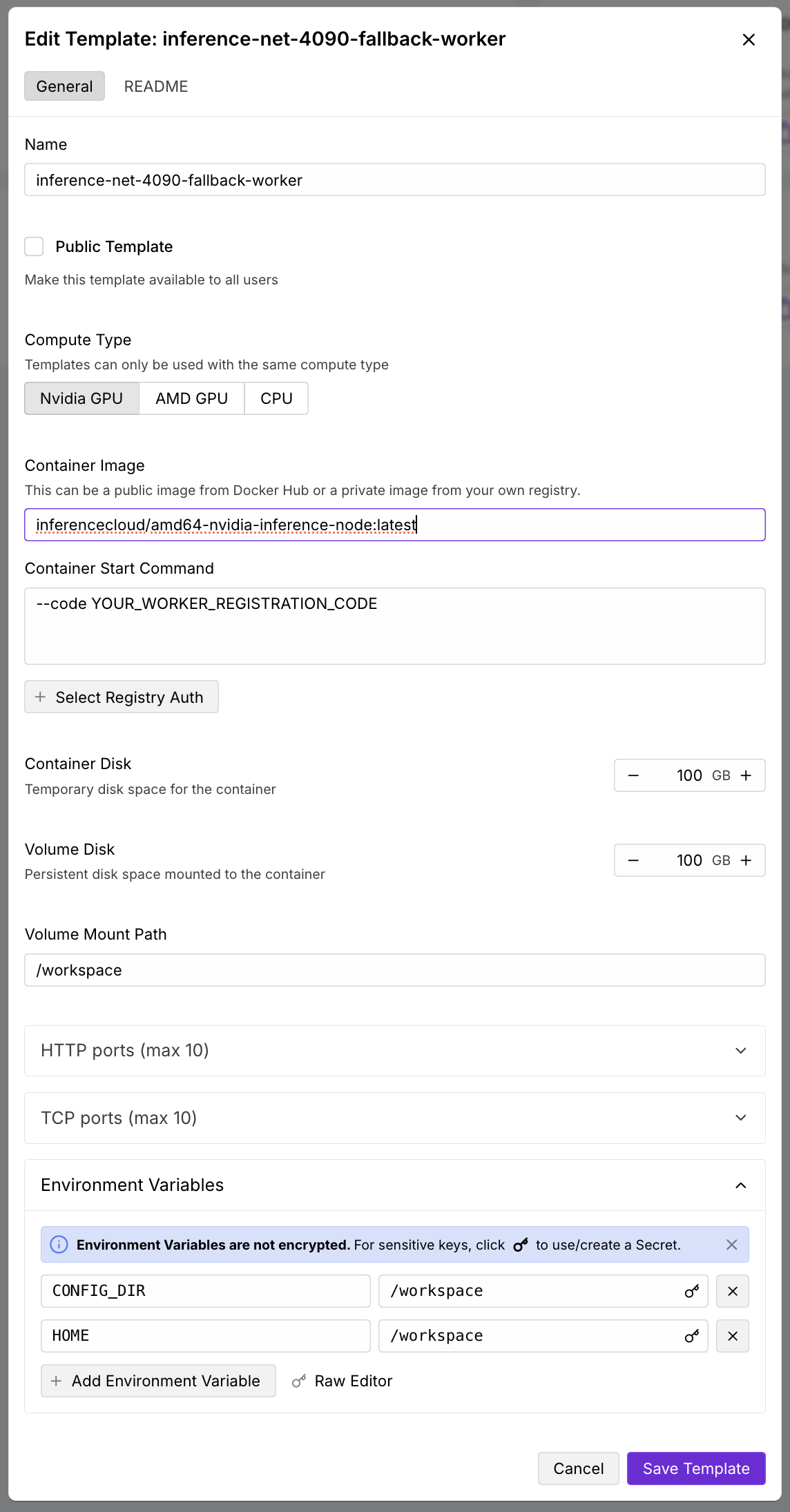 You can save this template and proceed to step 2.
## Step 3. Assigning the template as a "Default Job"
In RunPod, navigate to the **Machines** page under the **Host** section of the sidebar [by clicking here](https://console.runpod.io/host/machines).
When you've identifier a machine you'd like to add use as a fallback node, you can click the settings gear to open the menu
and then click **Edit Default Job**.
You can save this template and proceed to step 2.
## Step 3. Assigning the template as a "Default Job"
In RunPod, navigate to the **Machines** page under the **Host** section of the sidebar [by clicking here](https://console.runpod.io/host/machines).
When you've identifier a machine you'd like to add use as a fallback node, you can click the settings gear to open the menu
and then click **Edit Default Job**.
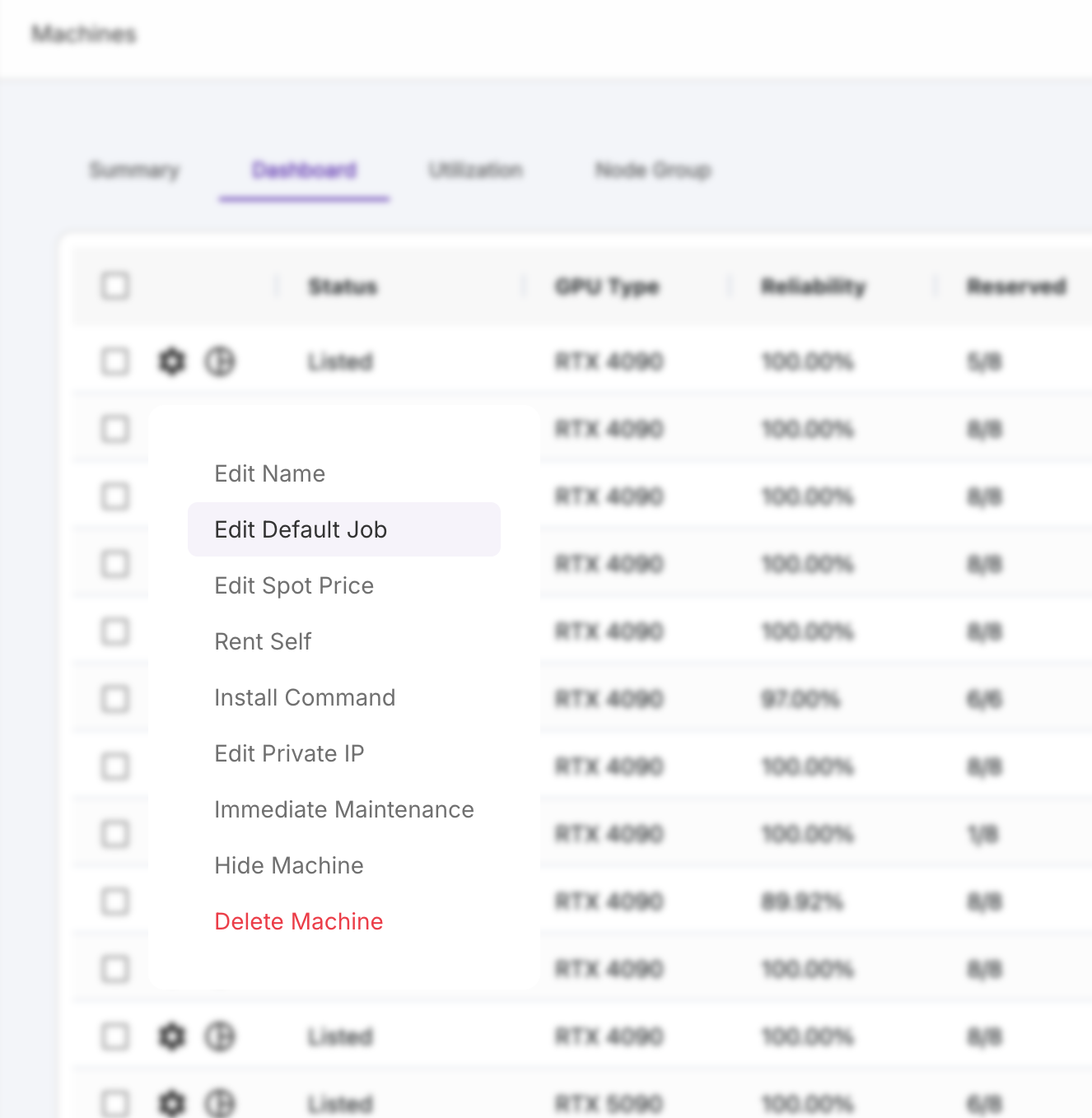 Click **Edit Default Job** and select the newly created template from step 2.
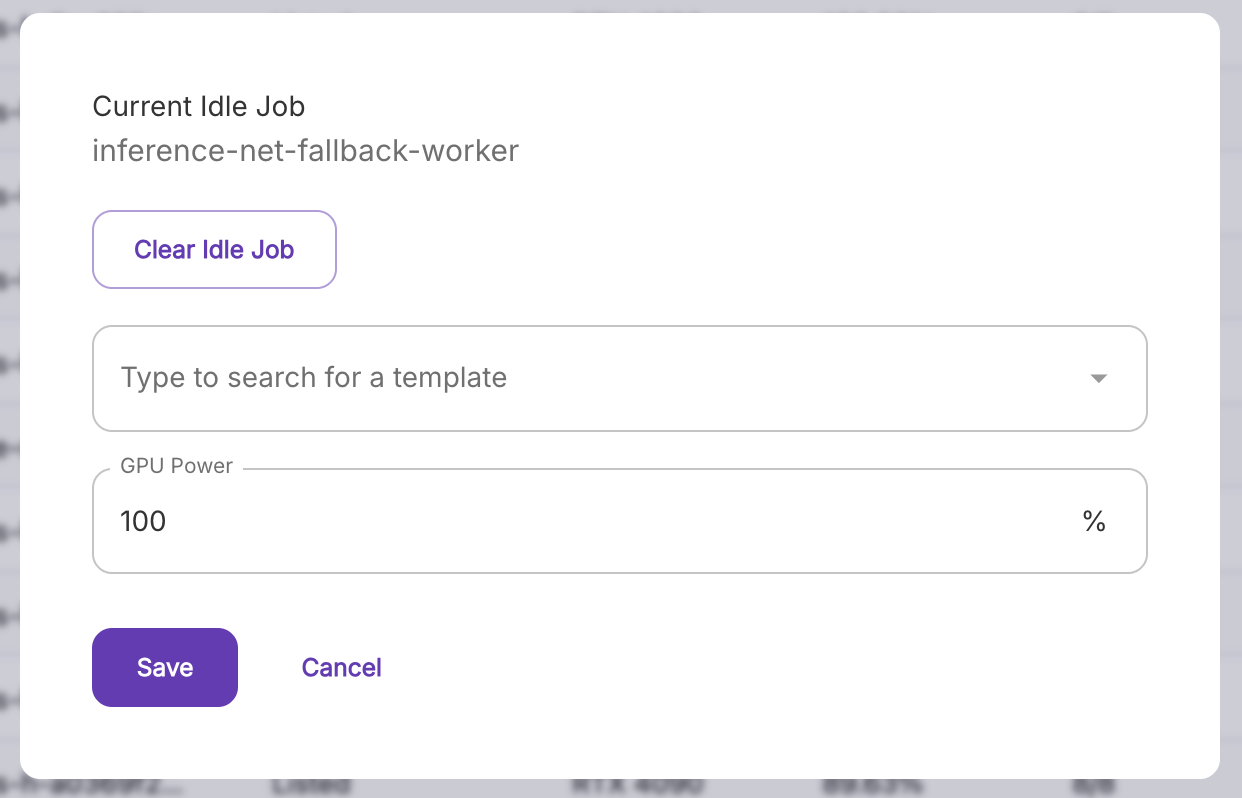
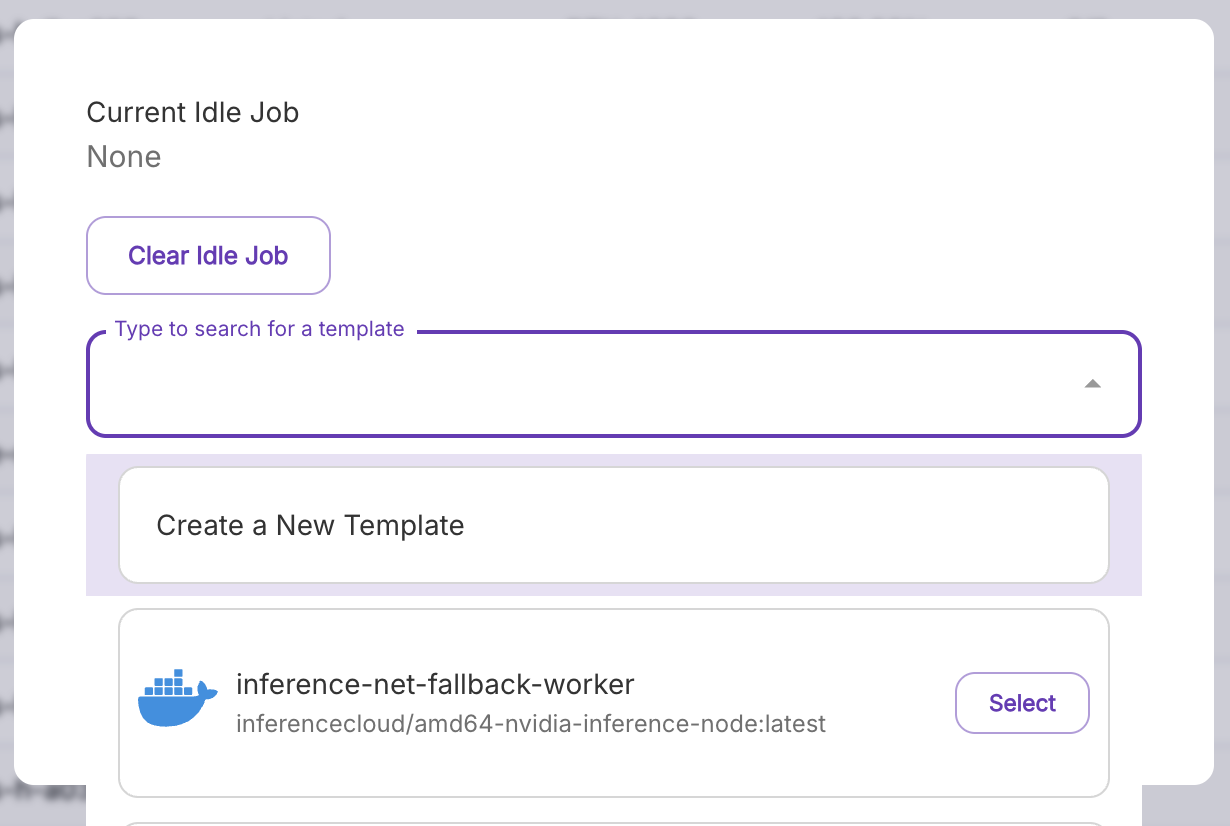 Now click **Save**.
If you open the **Edit Default Job** for that machine again, you'll see the newly selected template is set as the "Current Idle Job."
Now click **Save**.
If you open the **Edit Default Job** for that machine again, you'll see the newly selected template is set as the "Current Idle Job."
 ## Step 4. Verify the job is running
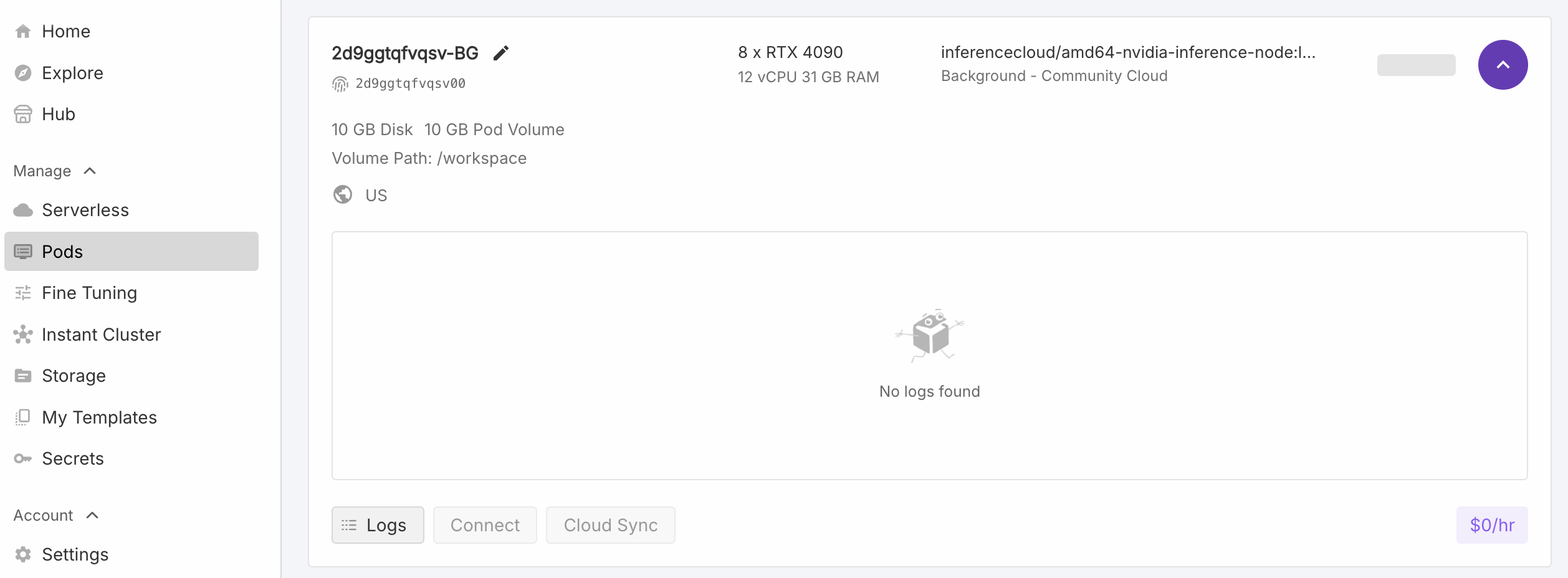
Once an idle job is running, it'll show up on the **Pods** page ([click here to jump to that page](https://console.runpod.io/pods)).
A running idle job will show appear as a `Backgound` job.
## Step 4. Verify the job is running
Once an idle job is running, it'll show up on the **Pods** page ([click here to jump to that page](https://console.runpod.io/pods)).
A running idle job will show appear as a `Backgound` job.