Step 1. Creating a worker on inference.net
Create your worker on the inference.net dashboard by clicking here.
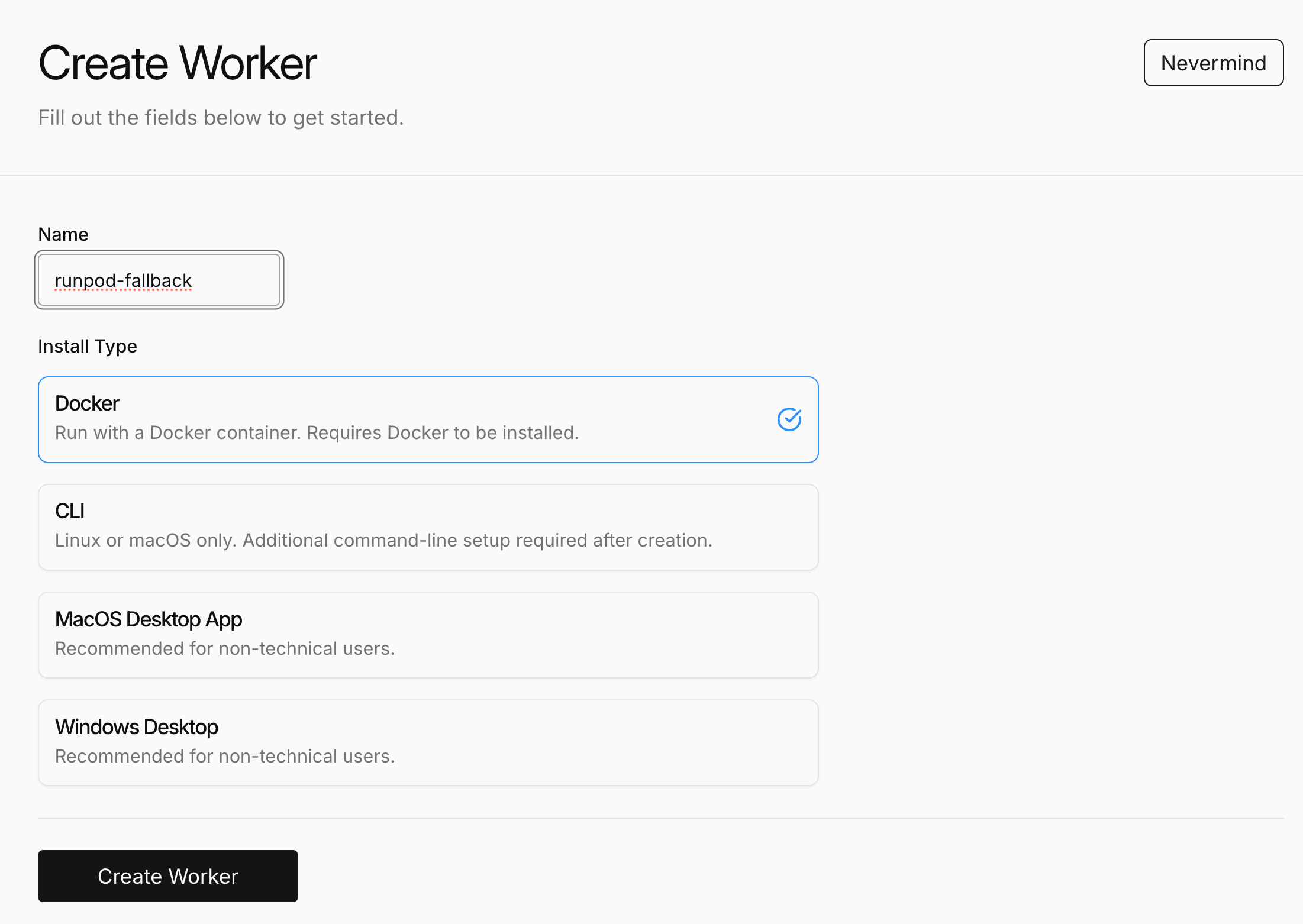
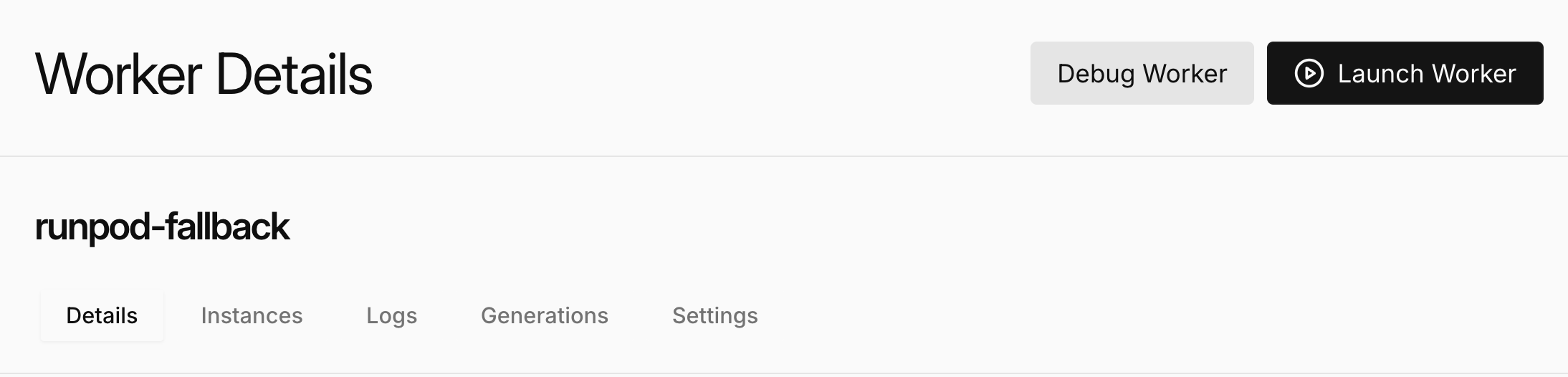
You can then copy your worker registration code by clicking the Launch Worker button.
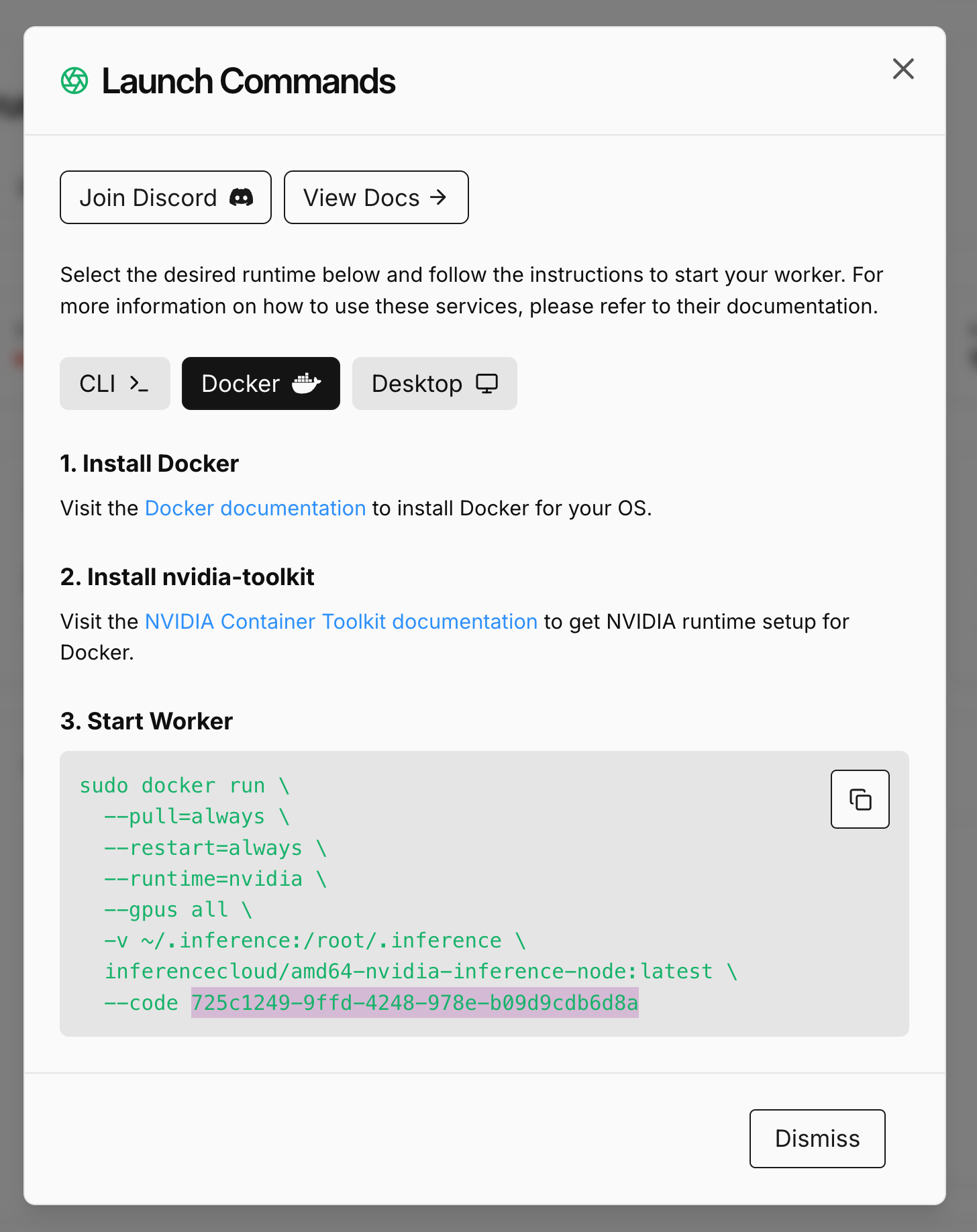
Finally you can copy your registration code from the modal.
Step 2. Creating the Worker Template
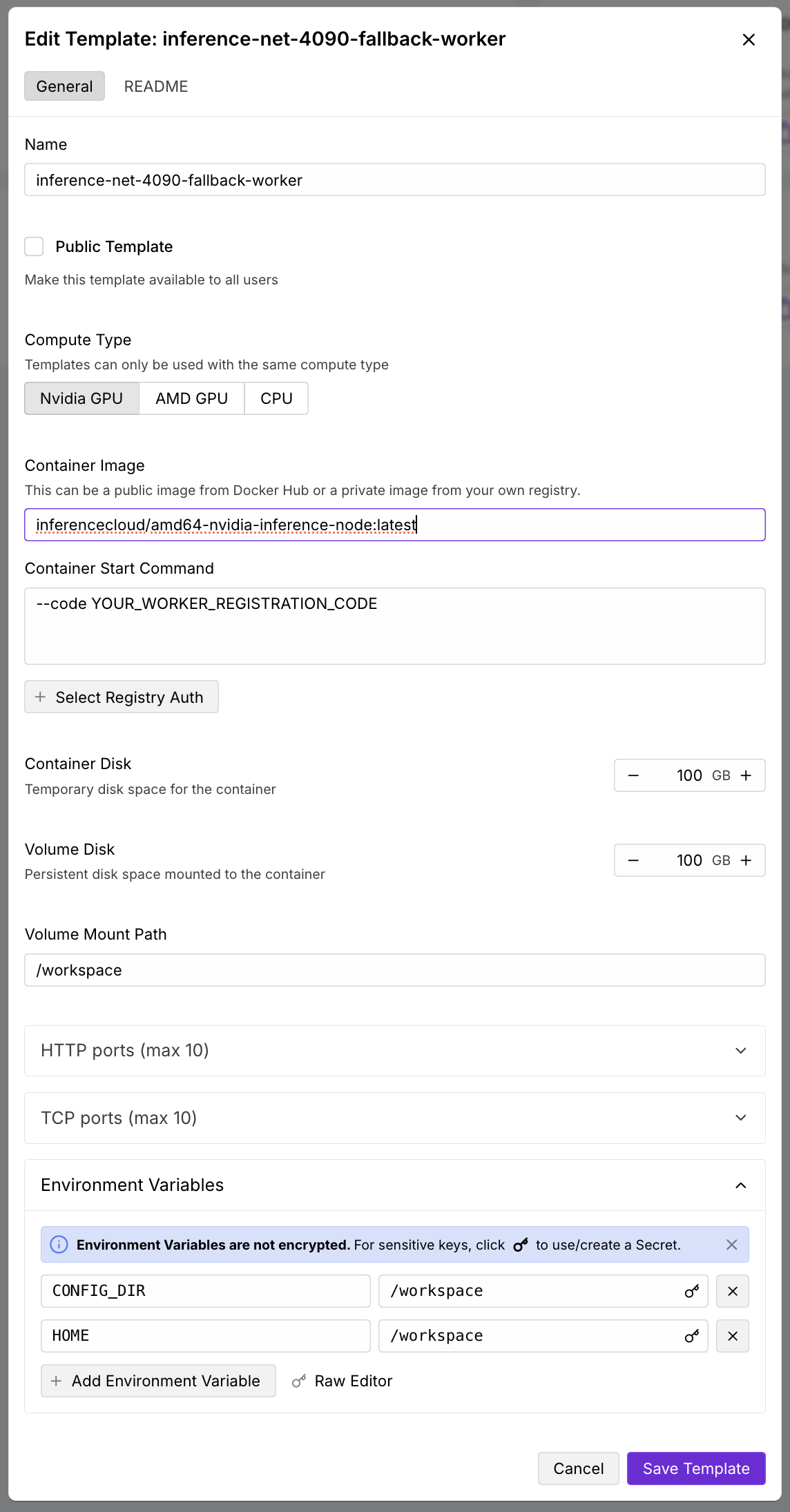
In RunPod, navigate to the “My Templates” page by clicking here. You’ll want to create a template with the following configuration: Here is a markdown table representing the configuration shown in your image:| Setting | Value |
|---|---|
| Name | inference-net-fallback-worker (or any name you prefer) |
| Public Template | (unchecked) |
| Compute Type | Nvidia GPU (if you need AMD support, contact the Inference.net team |
| Container Image | inferencecloud/amd64-nvidia-inference-node:latest |
| Container Start Command | --code YOUR_WORKER_REGISTRATION_CODE |
| Container Disk | 100 GB (if the machines you host on Runpod have larger drives, you should increase this up to 500gb) |
| Volume Disk | 100 GB (if the machines you host on Runpod have larger drives, you should increase this up to 500gb) |
| Volume Mount Path | /workspace |
| HTTP ports (max 10) | (empty) |
| TCP ports (max 10) | (empty) |
| Environment Variables | CONFIG_DIR=/workspace HOME=/workspace |
You can save this template and proceed to step 2.
Step 3. Assigning the template as a “Default Job”
In RunPod, navigate to the Machines page under the Host section of the sidebar by clicking here. When you’ve identifier a machine you’d like to add use as a fallback node, you can click the settings gear to open the menu and then click Edit Default Job.
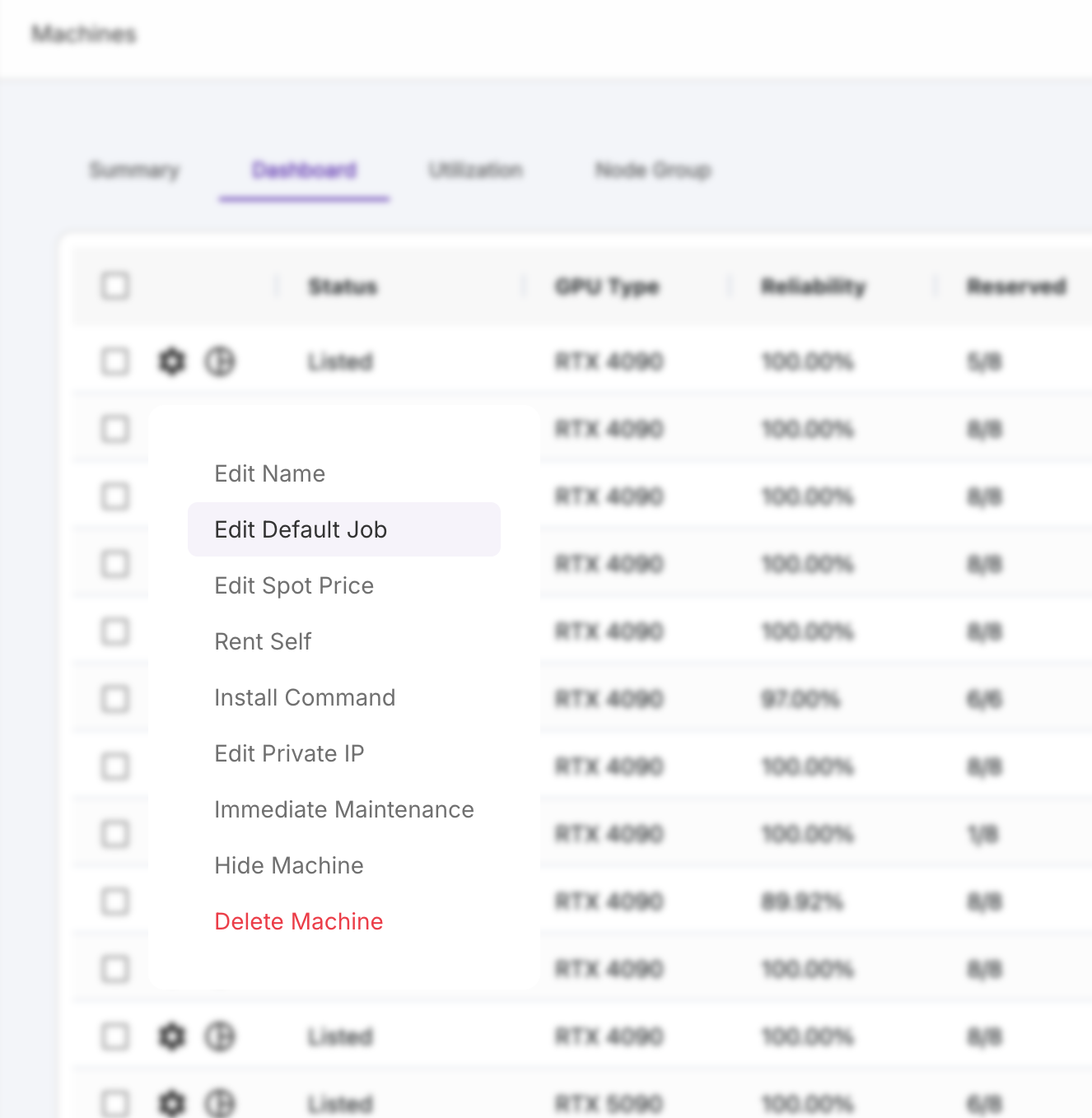
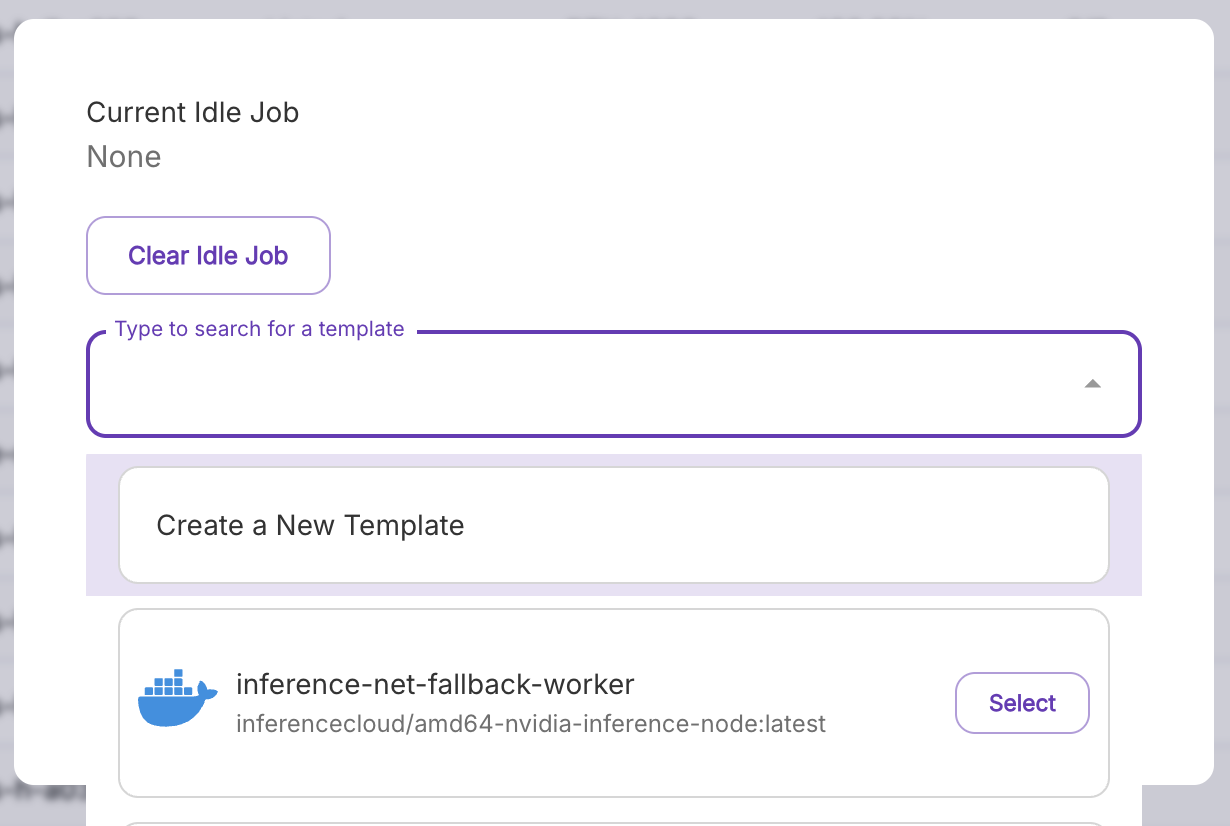
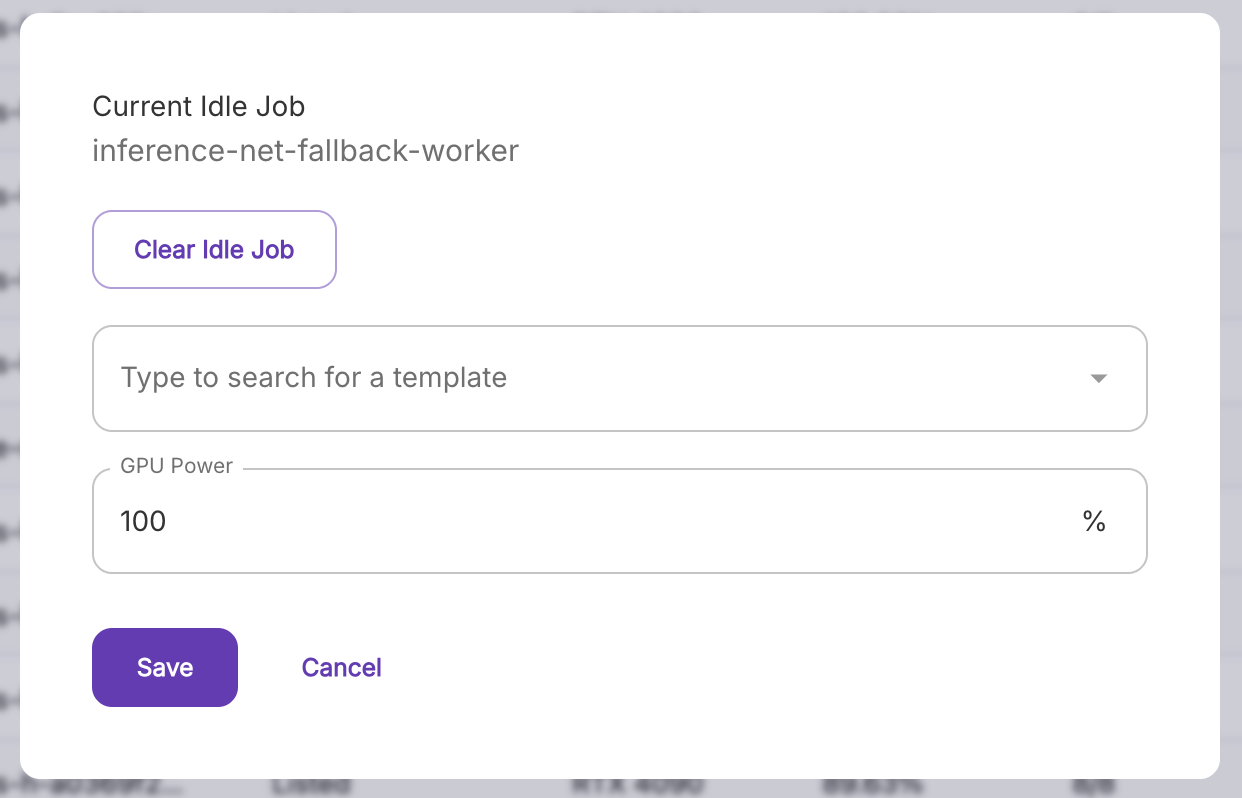
Click Edit Default Job and select the newly created template from step 2.
Now click Save.
If you open the Edit Default Job for that machine again, you’ll see the newly selected template is set as the “Current Idle Job.”
Step 4. Verify the job is running
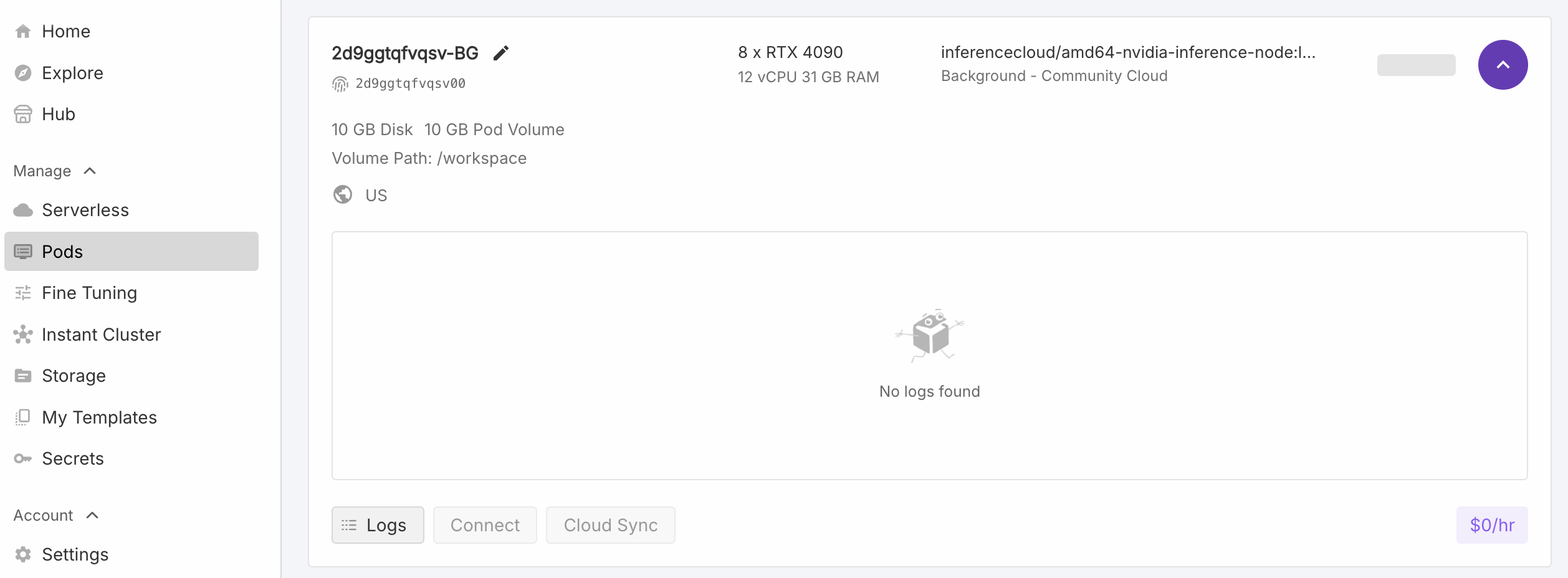
Once an idle job is running, it’ll show up on the Pods page (click here to jump to that page). A running idle job will show appear as aBackgound job.